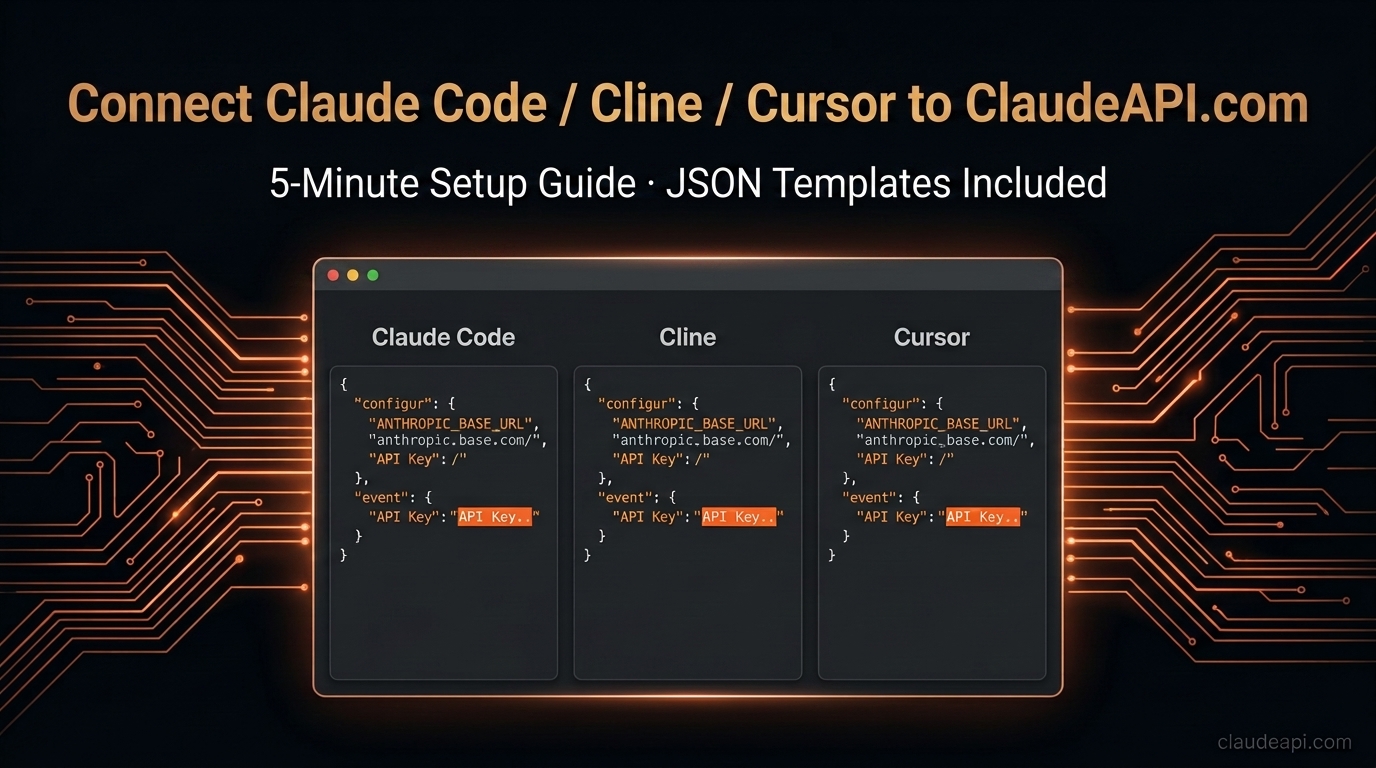
Connect Claude Code / Cline / Cursor to ClaudeAPI.com in 5 Minutes (Copy-Paste JSON Templates Included)
The #1 question our support team gets isn’t about pricing — it’s:
“How do I configure Claude Code in VS Code?”
“Which base URL does Cline need?”
“What provider do I pick in Cursor?”
This guide has one job: give you copy-paste-ready config templates so you can be up and running in 5 minutes.
Tools covered: Claude Code CLI · VS Code (Claude Code Extension) · Cline · Cursor
Platforms covered: Windows · macOS · Linux
Get Your API Key First
Log in to your ClaudeAPI.com dashboard → API Keys → Create or copy your key.
You’ll need two pieces of information:
- API Key:
sk-ant-api03-xxxxxxxx(your key) - Base URL:
https://api.claudeapi.com
Note: ClaudeAPI.com supports both the Anthropic format (native for Claude Code / Cline) and the OpenAI-compatible format (for Cursor / ChatBox / etc.). Details for each are covered below.
1. Claude Code CLI (Command Line)
Claude Code reads two environment variables to determine its API endpoint — no config files to edit.
macOS / Linux Setup
Add the following to your shell config file (~/.zshrc or ~/.bashrc):
# ClaudeAPI.com configuration
export ANTHROPIC_BASE_URL="https://api.claudeapi.com"
export ANTHROPIC_API_KEY="sk-ant-api03-yourKeyHere"
# ClaudeAPI.com configuration
export ANTHROPIC_BASE_URL="https://api.claudeapi.com"
export ANTHROPIC_API_KEY="sk-ant-api03-yourKeyHere"
Then reload:
source ~/.zshrc # or source ~/.bashrc
source ~/.zshrc # or source ~/.bashrc
Windows Setup (Three Options)
Option A: Command Prompt (current session only)
set ANTHROPIC_BASE_URL=https://api.claudeapi.com
set ANTHROPIC_API_KEY=sk-ant-api03-yourKeyHere
set ANTHROPIC_BASE_URL=https://api.claudeapi.com
set ANTHROPIC_API_KEY=sk-ant-api03-yourKeyHere
Option B: PowerShell (current session only)
$env:ANTHROPIC_BASE_URL = "https://api.claudeapi.com"
$env:ANTHROPIC_API_KEY = "sk-ant-api03-yourKeyHere"
$env:ANTHROPIC_BASE_URL = "https://api.claudeapi.com"
$env:ANTHROPIC_API_KEY = "sk-ant-api03-yourKeyHere"
Option C: System Environment Variables (persistent — recommended)
Win + R→ typesysdm.cpl→ Advanced → Environment Variables- Under “User variables”, create:
- Variable:
ANTHROPIC_BASE_URL, Value:https://api.claudeapi.com - Variable:
ANTHROPIC_API_KEY, Value:yourKeyHere
- Variable:
- Restart your terminal for changes to take effect
Verify It Works
claude "Hello, say something to test"
claude "Hello, say something to test"
A normal response means you’re all set. To confirm you’re hitting the ClaudeAPI.com endpoint:
echo $ANTHROPIC_BASE_URL   # macOS/Linux
echo %ANTHROPIC_BASE_URL%  # Windows CMD
echo $ANTHROPIC_BASE_URL   # macOS/Linux
echo %ANTHROPIC_BASE_URL%  # Windows CMD
2. VS Code Extension (Claude Code Extension)
If you’re using the Claude Code extension inside VS Code (not the CLI), there are two configuration methods. Method A is recommended.
Method A: Edit settings.json (Recommended — one-time global config)
The Claude Code global settings file is located at:
| OS | Path |
|---|---|
| macOS/Linux | ~/.claude/settings.json |
| Windows | C:\Users\yourUsername\.claude\settings.json |
If the file doesn’t exist, create it with the following content:
{
  "$schema": "https://json.schemastore.org/claude-code-settings.json",
  "env": {
    "ANTHROPIC_BASE_URL": "https://api.claudeapi.com",
    "ANTHROPIC_API_KEY": "sk-ant-api03-yourKeyHere"
  }
}
{
  "$schema": "https://json.schemastore.org/claude-code-settings.json",
  "env": {
    "ANTHROPIC_BASE_URL": "https://api.claudeapi.com",
    "ANTHROPIC_API_KEY": "sk-ant-api03-yourKeyHere"
  }
}
Save the file and restart VS Code. The extension will pick up the config automatically.
Tip: Including the
$schemaline enables autocomplete and field validation forsettings.jsonin VS Code — handy when tweaking other settings later.
Method B: VS Code Extension Settings UI
- Press
Ctrl+,to open Settings - Search for
Claude Code - Find
Environment Variablesand add:ANTHROPIC_BASE_URL=https://api.claudeapi.comANTHROPIC_API_KEY=yourKeyHere
Verify
After restarting VS Code, ask any question in the Claude Code panel. The model name should appear in the status bar at the bottom left.
3. Cline Extension (Recommended Setup)
Cline is one of the most feature-rich AI coding assistants available for VS Code. It supports two connection methods:
Method A: Anthropic Native Format (Recommended — full feature support)
This method provides full Tool Use support, meaning Cline’s file editing, terminal execution, and other agent capabilities all work out of the box.
- Click the Cline icon in the VS Code sidebar
- Click the ⚙️ settings icon in the top right
- Fill in the fields as follows:
| Field | Value |
|---|---|
| API Provider | Anthropic |
| Base URL | https://api.claudeapi.com |
| API Key | Your ClaudeAPI Key |
| Model | claude-sonnet-4-6 |
Method B: OpenAI-Compatible Format (for multi-model workflows)
Use this if you want to access GPT, Gemini, or other non-Claude models through Cline as well:
| Field | Value |
|---|---|
| API Provider | OpenAI Compatible |
| Base URL | https://api.claudeapi.com/v1 |
| API Key | Your ClaudeAPI Key |
| Model ID | claude-sonnet-4-6 |
Direct settings.json Edit
If you prefer editing the config file directly, add the following to your VS Code settings.json:
{
  "cline.apiProvider": "anthropic",
  "cline.apiKey": "sk-ant-api03-yourKeyHere",
  "cline.anthropicBaseUrl": "https://api.claudeapi.com",
  "cline.apiModelId": "claude-sonnet-4-6"
}
{
  "cline.apiProvider": "anthropic",
  "cline.apiKey": "sk-ant-api03-yourKeyHere",
  "cline.anthropicBaseUrl": "https://api.claudeapi.com",
  "cline.apiModelId": "claude-sonnet-4-6"
}
Or using the OpenAI-Compatible method:
{
  "cline.apiProvider": "openai-compatible",
  "cline.openAiCompatible.baseUrl": "https://api.claudeapi.com/v1",
  "cline.openAiCompatible.apiKey": "sk-ant-api03-yourKeyHere",
  "cline.openAiCompatible.modelId": "claude-sonnet-4-6"
}
{
  "cline.apiProvider": "openai-compatible",
  "cline.openAiCompatible.baseUrl": "https://api.claudeapi.com/v1",
  "cline.openAiCompatible.apiKey": "sk-ant-api03-yourKeyHere",
  "cline.openAiCompatible.modelId": "claude-sonnet-4-6"
}
4. Cursor IDE Configuration
Cursor uses the OpenAI-compatible format — all custom endpoints go through the OpenAI API protocol.
Setup Steps
- Open Cursor and press
Ctrl+,(Windows/Linux) orCmd+,(macOS) to open Settings - Click Models in the left sidebar
- Find the “Override OpenAI Base URL” field and enter:
https://api.claudeapi.com/v1https://api.claudeapi.com/v1 - Enter your ClaudeAPI Key in the “OpenAI API Key” field
- Click “+ Add Model” and enter the model name:
Available Claude model names:
claude-opus-4-7
claude-opus-4-6
claude-sonnet-4-6
claude-haiku-4-5-20251001
claude-opus-4-7
claude-opus-4-6
claude-sonnet-4-6
claude-haiku-4-5-20251001
- Save, then select your added model in the Cursor Chat panel to test
Important Notes for Cursor
- Cursor only supports the OpenAI format, meaning all requests go through the
/v1/chat/completionsendpoint - The Base URL must include
/v1(Cursor appends/chat/completionsautomatically) - If you see a “Model not found” error, double-check that the model name matches exactly (case-sensitive)
5. Model Selection Guide
Not sure which model to use? Here’s a quick decision framework:
| Model | Best For | Standard Pricing (Input / Output) |
|---|---|---|
claude-opus-4-7 |
Complex architecture design, long documents, deep reasoning | $4.00 / $20.00 per 1M tokens |
claude-opus-4-6 |
Large-scale code refactoring, specialized tasks | $4.00 / $20.00 per 1M tokens |
claude-sonnet-4-6 |
Day-to-day coding, code completion, doc generation (Recommended) | $2.40 / $12.00 per 1M tokens |
claude-haiku-4-5-20251001 |
Quick Q&A, code comments, fast responses | $0.80 / $4.00 per 1M tokens |
Our recommendation for IDE use: Stick with claude-sonnet-4-6 for everyday development — it’s the best balance of quality and cost. Switch to claude-opus-4-6 when you’re tackling complex architecture or thorny refactors.
6. Troubleshooting
Issue 1: “401 Unauthorized”
Cause: Incorrect API key, or extra whitespace copied before/after the key.
Fix:
- Go to your ClaudeAPI.com dashboard and confirm the key is valid
- Make sure the full key was copied — it should start with
sk-ant-api03-
Issue 2: “Connection refused” or Timeout
Cause: Incorrect Base URL.
Most common mistake:
# Wrong — extra /v1
ANTHROPIC_BASE_URL=https://api.claudeapi.com/v1   ❌

# Correct (for Claude Code and Cline Anthropic mode)
ANTHROPIC_BASE_URL=https://api.claudeapi.com       ✅

# Correct (for Cursor and Cline OpenAI Compatible mode)
Base URL = https://api.claudeapi.com/v1            ✅
# Wrong — extra /v1
ANTHROPIC_BASE_URL=https://api.claudeapi.com/v1   ❌

# Correct (for Claude Code and Cline Anthropic mode)
ANTHROPIC_BASE_URL=https://api.claudeapi.com       ✅

# Correct (for Cursor and Cline OpenAI Compatible mode)
Base URL = https://api.claudeapi.com/v1            ✅
Easy rule to remember: Anthropic format → no /v1. OpenAI-compatible format → include /v1.
Issue 3: Cline Agent Features (File Editing / Terminal) Not Working
Cause: You’re using OpenAI Compatible mode, which has incomplete Tool Use support.
Fix: Switch to Anthropic native mode (Method A). Tool Use is a first-class feature of the Anthropic protocol and works much more reliably.
Issue 4: VS Code Extension Still Asks You to Log In After Configuration
Cause: Environment variables haven’t taken effect, so the extension is falling back to the default Anthropic login flow.
Fix:
// Add to ~/.claude/settings.json
{
  "env": {
    "ANTHROPIC_BASE_URL": "https://api.claudeapi.com",
    "ANTHROPIC_API_KEY": "yourKeyHere"
  }
}
// Add to ~/.claude/settings.json
{
  "env": {
    "ANTHROPIC_BASE_URL": "https://api.claudeapi.com",
    "ANTHROPIC_API_KEY": "yourKeyHere"
  }
}
Save, then fully quit and reopen VS Code (not just reload the window — actually close and relaunch).
Issue 5: Environment Variables Not Taking Effect on Windows
Cause: You set system environment variables but didn’t restart your terminal.
Fix: Close all PowerShell/CMD windows completely and reopen them. If you’re using VS Code’s integrated terminal, restart VS Code itself.
7. Quick Verification Scripts
Not sure if everything is working? Run one of these to verify:
Python (recommended):
import anthropic

client = anthropic.Anthropic(
    api_key="sk-ant-api03-yourKeyHere",
    base_url="https://api.claudeapi.com"
)

message = client.messages.create(
    model="claude-sonnet-4-6",
    max_tokens=100,
    messages=[{"role": "user", "content": "Say 'Setup successful'"}]
)

print(message.content[0].text)
print(f"Input: {message.usage.input_tokens} tokens")
print(f"Output: {message.usage.output_tokens} tokens")
import anthropic

client = anthropic.Anthropic(
    api_key="sk-ant-api03-yourKeyHere",
    base_url="https://api.claudeapi.com"
)

message = client.messages.create(
    model="claude-sonnet-4-6",
    max_tokens=100,
    messages=[{"role": "user", "content": "Say 'Setup successful'"}]
)

print(message.content[0].text)
print(f"Input: {message.usage.input_tokens} tokens")
print(f"Output: {message.usage.output_tokens} tokens")
curl (no dependencies needed):
curl -X POST https://api.claudeapi.com/v1/messages \
  -H "Content-Type: application/json" \
  -H "x-api-key: sk-ant-api03-yourKeyHere" \
  -H "anthropic-version: 2023-06-01" \
  -d '{
    "model": "claude-sonnet-4-6",
    "max_tokens": 50,
    "messages": [{"role": "user", "content": "Say setup successful"}]
  }'
curl -X POST https://api.claudeapi.com/v1/messages \
  -H "Content-Type: application/json" \
  -H "x-api-key: sk-ant-api03-yourKeyHere" \
  -H "anthropic-version: 2023-06-01" \
  -d '{
    "model": "claude-sonnet-4-6",
    "max_tokens": 50,
    "messages": [{"role": "user", "content": "Say setup successful"}]
  }'
If you get a JSON response containing a "content" field, you’re good to go.
Quick Reference Card (Bookmark This)
┌─────────────────────────────────────────────────────────┐
│           ClaudeAPI.com Configuration Cheat Sheet        │
├──────────────┬──────────────────────────────────────────┤
│ Tool         │ Configuration                            │
├──────────────┼──────────────────────────────────────────┤
│ Claude Code  │ ANTHROPIC_BASE_URL (without /v1)         │
│ CLI          │ = https://api.claudeapi.com              │
├──────────────┼──────────────────────────────────────────┤
│ VS Code      │ ~/.claude/settings.json                  │
│ Extension    │ env.ANTHROPIC_BASE_URL (without /v1)     │
├──────────────┼──────────────────────────────────────────┤
│ Cline        │ Provider: Anthropic                      │
│ (Recommended)│ Base URL: https://api.claudeapi.com      │
├──────────────┼──────────────────────────────────────────┤
│ Cursor       │ Override OpenAI Base URL                  │
│              │ = https://api.claudeapi.com/v1 (with /v1)│
└──────────────┴──────────────────────────────────────────┘
┌─────────────────────────────────────────────────────────┐
│           ClaudeAPI.com Configuration Cheat Sheet        │
├──────────────┬──────────────────────────────────────────┤
│ Tool         │ Configuration                            │
├──────────────┼──────────────────────────────────────────┤
│ Claude Code  │ ANTHROPIC_BASE_URL (without /v1)         │
│ CLI          │ = https://api.claudeapi.com              │
├──────────────┼──────────────────────────────────────────┤
│ VS Code      │ ~/.claude/settings.json                  │
│ Extension    │ env.ANTHROPIC_BASE_URL (without /v1)     │
├──────────────┼──────────────────────────────────────────┤
│ Cline        │ Provider: Anthropic                      │
│ (Recommended)│ Base URL: https://api.claudeapi.com      │
├──────────────┼──────────────────────────────────────────┤
│ Cursor       │ Override OpenAI Base URL                  │
│              │ = https://api.claudeapi.com/v1 (with /v1)│
└──────────────┴──────────────────────────────────────────┘
Once configured, all your AI coding tools route through ClaudeAPI.com — unified billing, with detailed usage breakdowns available anytime in your dashboard.
Run into issues during setup? Send a screenshot of your error message to our support team and you’ll typically get a response within 10 minutes.